
Best Practices
This document will guide you on adjusting software settings for optimal experience.
Use Computer with Power Connected
- Some computers run in low-power mode when not connected to power, resulting in reduced smoothness.
Use USB Cable Connection
USB cable connection can avoid many network issues and reduce the impact of network on software experience.
- Choose reliable USB cables, either original manufacturer cables or cables with shielding layer.
- Some devices have poor compatibility with USB 3.0, you can temporarily use USB 2.0 cables.
Network Optimization
- If possible, connect your computer via Ethernet cable.
Use 5GHz band on tablet (provided both router and tablet support 5GHz band).
Open the tablet's WiFi network page, as shown in the image below:
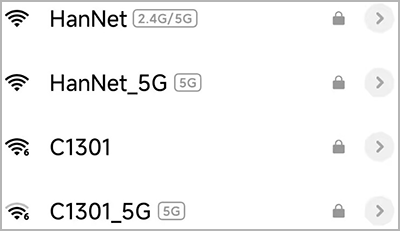
Check the icon for HanNet, indicating this WiFi is WiFi 5 or below. The 6 icon for C1301 indicates this WiFi is WiFi 6. There is also the new WiFi standard WiFi 7. Higher standards theoretically offer faster speeds.
- HanNet is a dual-band WiFi that combines 2.4G and 5G frequencies. When connecting to this WiFi, mobile/tablet devices will automatically select either the 2.4G or 5G band. HanNet_5G is the 5G band WiFi; connecting to it means the mobile/tablet accesses the 5G band. Whereas connecting to the WiFi corresponding to C1301 means the mobile/tablet accesses the 2.4G band.
- Theoretically, the 5G band is faster than the 2.4G band. However, the 2.4G band has better wall-penetrating capability than the 5G band. Therefore, in environments with obstacles, the actual connection speeds of both bands need to be tested to determine performance.
- Not all Android devices display WiFi information in this way; some require tapping on the WiFi network to view detailed information.
- Keep computer and tablet close to the router without walls in between (walls can severely attenuate WiFi signals, especially 5GHz band signals. If walls are unavoidable, use 2.4GHz band, but network speed will be slightly slower than 5GHz band).
- Alternatively, you can choose to share a hotspot from the computer and connect the tablet to that hotspot. For sharing a hotspot from your computer, please refer to: WiFi Connection。

Adjust Frame Rate
Tablets have an upper limit for supported frame rates, which varies by tablet model, mainly depending on the tablet's screen refresh rate and the frame rate achievable by tablet GPU decoding. Screen refresh rate doesn't necessarily equal tablet GPU decoding frame rate. ExtensoDesk tablet app settings will detect the maximum frame rate supported by the tablet. Generally, if the supported frame rate is relatively high (greater than 60) but usage is laggy, it's usually a network issue (or possibly the app running in a virtual machine causing lag). If it's not a network issue and there's obvious lag at low frame rates, adjusting to higher frame rates may worsen the lag.
Adjust Rendering GPU (Graphics Card)
- If you use clone screen mode and it works normally, do not adjust the rendering GPU in computer software settings.
- If you use extended screen mode, you can freely adjust the rendering GPU in computer software settings. For better experience, you can set the rendering GPU to a more powerful GPU (usually dedicated graphics card).
Adjust Encoding Method
The software supports two encoding methods, H264 and H265.
- H264 encoding has lower performance requirements for devices but higher network environment requirements, suitable for devices with lower performance but better network environment.
- H265 encoding has higher performance requirements for devices but slightly lower network environment requirements, suitable for devices with higher performance.
- You can choose the appropriate encoding method in tablet app settings.
Adjust Zoom
- Adjusting zoom in tablet app settings will proportionally reduce the extended screen resolution after connection is established, to achieve full screen coverage or improve smoothness.
- Currently there are 4 zoom options: 100, Best, 75, 50, with corresponding resolutions decreasing sequentially.
- The Best option is not displayed on all devices, only on some devices that cannot achieve full screen coverage (inability to achieve full screen coverage is due to the maximum resolution supported by tablet GPU at a certain frame rate being less than tablet screen resolution).
Adjust Image Quality
- Adjust image quality in tablet app settings. Higher image quality requires more data to be transmitted and processed, requiring higher performance.