
Frequently Asked Questions
This document will guide you to solve common problems.
Cannot Find Computer in Wireless Network
- Please confirm that the computer software is started normally and allowed through Windows network firewall.
- Please check if computer and tablet are connected to the same router.
Please confirm if the current network is a restricted network such as corporate intranet/campus network. If on a restricted network, try using the computer to share a hotspot and connect the tablet to that hotspot. For how to share hotspot, please refer to: WiFi Connection .
Unable to Connect via USB
Some third-party software (such as live streaming companion software) may forcibly use their own USB drivers when a phone/tablet is connected to the computer. Even after the software stops running, the phone/tablet may continue to use these drivers upon reconnection, preventing file transfer to the computer and preventing our software from communicating with the phone/tablet, thus making USB connection unavailable.
First, perform troubleshooting
- Ensure the USB cable is working properly.
- After plugging in the USB cable, select "File Transfer" in the USB option that pops up on the tablet (or in the drop-down USB options).
Open Device Manager on the computer, check Universal Serial Bus devices. Normally there should be ExtensoDesk Android Device. If not, it should be a driver loading error. Please refer to: USB Driver Loading Error .
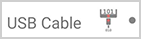
- If ExtensoDesk Android Device exists and the driver has no error messages, but the USB item on tablet shows a gray dot on the right side and using a USB 3.0 cable, please try switching to a USB 2.0 cable.
If ExtensoDesk Android Device exists but has a driver error, double-click ExtensoDesk Android Device to check the error code. For the corresponding action, please refer to: ExtensoDesk Android Device Error Codes .

USB Driver Loading Error
- Run ExtensoDesk with administrator privileges on Windows.
- Connect the tablet/phone to the computer using a data cable. Please ensure the cable can transmit data properly.
- Select "File Transfer" in the USB options on the tablet side.
In the Windows ExtensoDesk software, select the entry corresponding to your tablet/phone and uncheck the "Use USB device as client" option. If there is no entry for your tablet/phone in the software, skip this step and proceed to the next one.
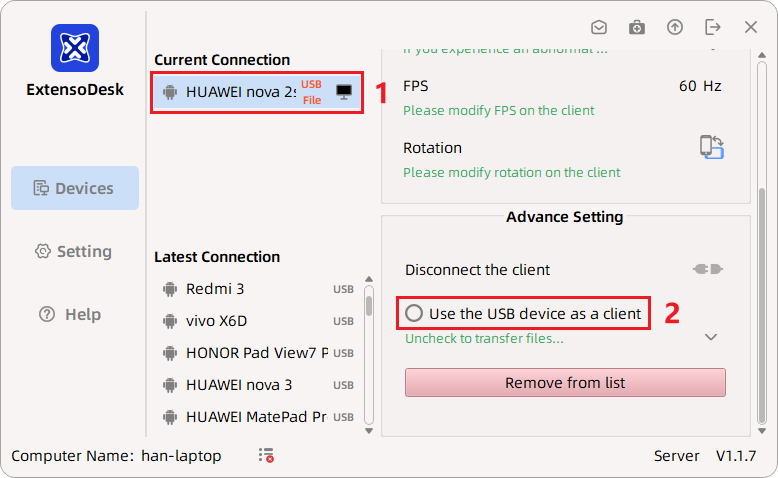
- Unplug the data cable, then plug it back in.
Open Windows Device Manager and check if there is a "Portable Devices" entry, and whether your tablet/phone device is listed under it. If your device is listed there, skip this step. If not, check other entries like "Universal Serial Bus devices" or "LibUsbK" for your tablet/phone. Our software can only recognize tablet/phone devices listed under Portable Devices. If Windows has loaded a different driver, placing your device elsewhere, the software won't recognize it. In this case, you need to manually change the loaded driver to make the system load the Portable Device driver. For how to manually load the Portable Device driver, please refer to: Manually Load MTP Driver .
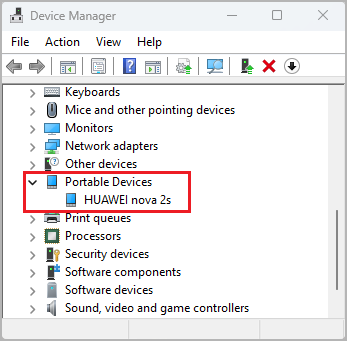
Check if the entry for your device under Portable Devices has a driver error. If it prompts that the registry is corrupted, please refer to: Fix Registry .
- Unplug the data cable, then plug it back in.
In the Windows ExtensoDesk software, there should now be an entry for your tablet/phone. If not, open Device Manager and repeat the steps above. Select the entry for your tablet/phone and check the "Use USB device as client" option.
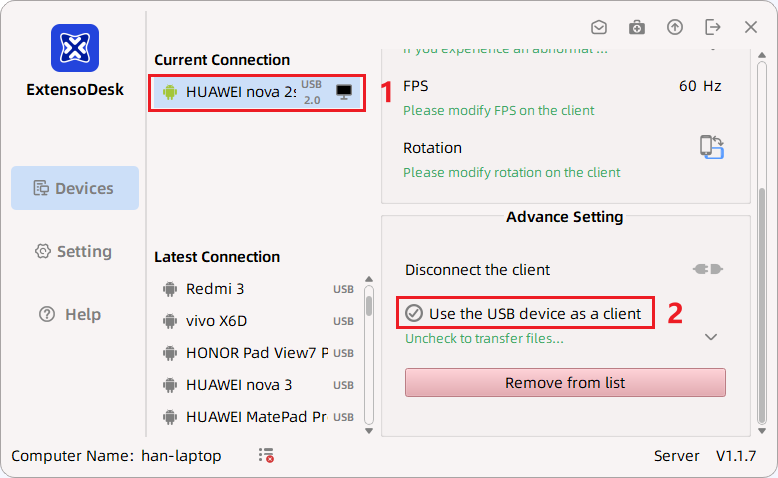
- Unplug the data cable, then plug it back in.
Check if "ExtensoDesk Android Device" is listed under the "Universal Serial Bus devices" entry in Device Manager. If it is, skip this step. If not, please refer to: Manually Load ExtensoDesk Android Device Driver .
Check if the ExtensoDesk Android Device has any driver errors. If so, double-click ExtensoDesk Android Device, check the error code, and for the corresponding action, please refer to: ExtensoDesk Android Device Error Codes .
- After the ExtensoDesk Android Device has no issues, operate on the tablet side to connect.
If the USB entry on the tablet side remains as shown in the following image, then the issue is no longer a driver error. Please refer to: First, perform troubleshooting .


How to Find the Device in Device Manager
- First, connect the tablet/phone device to the computer using a data cable.
- Open Windows Device Manager.
- First, take an overall look at the Device Manager. If you can find it directly, you can skip all the following steps.
- In Device Manager, first locate entries that could potentially be the tablet/phone. Note their locations, you can take a screenshot, temporarily referred to as Image 1.
- Disconnect the phone/tablet from the computer and wait for the Device Manager to refresh.
- Look for the entries marked in the previous Image 1. If you cannot find them, then that entry corresponds to your phone/tablet device.
Manually Load MTP Driver
- Open Windows Device Manager.
Find your device. For how to find your device, please refer to: How to Find the Device in Device Manager .
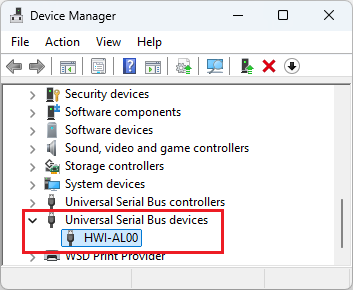
- My device is a Huawei Nova 2s, corresponding to the device HWI-AL00, as shown in the image below. Different devices have different names, and some drivers might not be named according to the device name. Please use the previous step to find the corresponding entry based on your device.
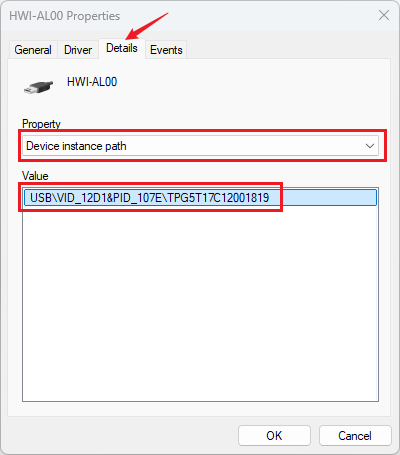
- Double-click HWI-AL00 to open the device properties panel. As shown below, select the "Details" tab, choose "Device instance path" in the Property dropdown, and check the corresponding Value. The value contains VID_xxxx and PID_yyyy. If xxxx is 18D1 and yyyy is 2D00, 2D01, 2D02, 2D03, 2D04, or 2D05, this device should load the ExtensoDesk Android Device driver, not the MTP driver. Please refer to: Manually Load ExtensoDesk Android Device Driver . If it is not the above case, please continue to the next step.
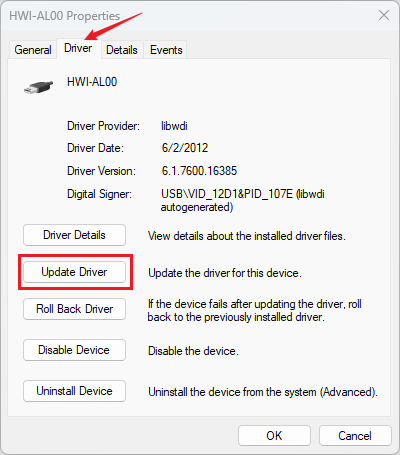
- Select the "Driver" tab and click the "Update Driver" button, as shown below.
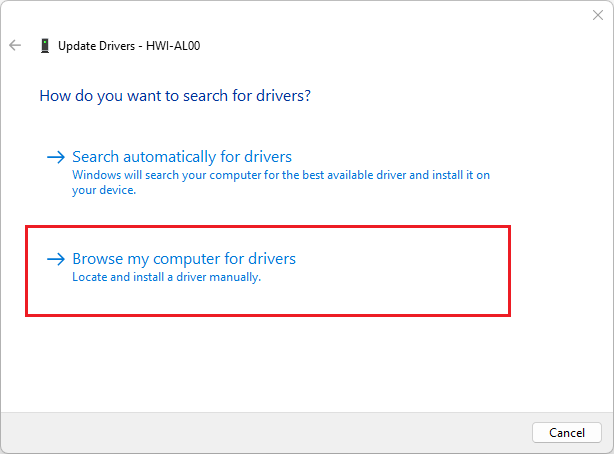
- Select "Browse my computer for drivers," as shown below.
- Select "Let me pick from a list of available drivers on my computer," as shown below.
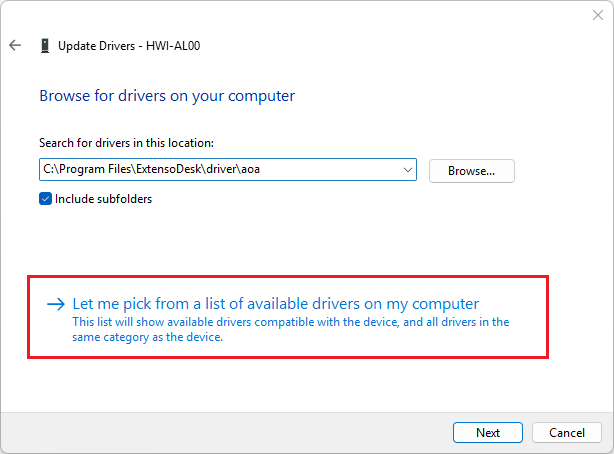
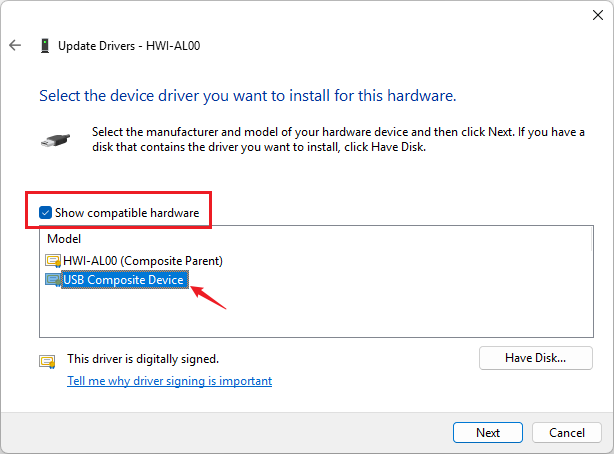
- Check "Show compatible hardware," select "USB Composite Device," and click "Next," as shown below.
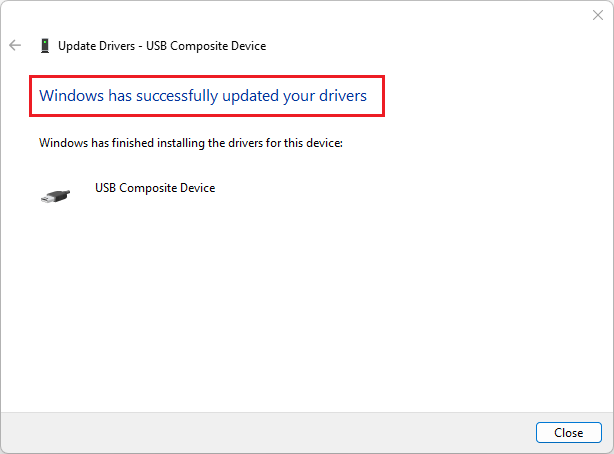
- If the driver switch is successful, it will display 'Windows has successfully updated your drivers,' as shown below.


Fix Registry
Before proceeding with the repair, please first confirm whether it is necessary. Check Windows Device Manager >> Portable Devices >> Your device. Double-click to view. Only if an error message indicating a corrupted registry is displayed, should the repair be carried out.
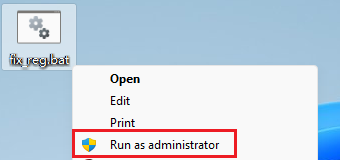
We provide a script. Download it and run it with administrator privileges.
As shown below, right-click the file and select 'Run as administrator' from the context menu.
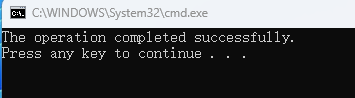
As shown below, after executing the file, the following output indicates successful command execution.


Manually Load ExtensoDesk Android Device Driver
- Open Windows Device Manager.
Find your device. For how to find your device, please refer to: How to Find the Device in Device Manager .
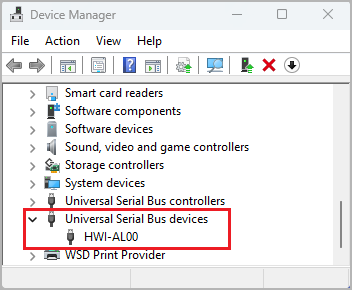
- My device is a Huawei Nova 2s, corresponding to the device HWI-AL00, as shown in the image below. Different devices have different names, and some drivers might not be named according to the device name. Please use the previous step to find the corresponding entry based on your device.
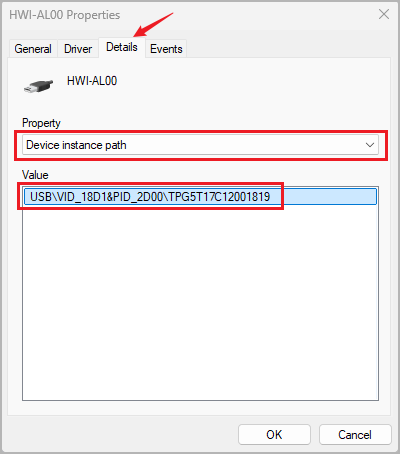
- Double-click HWI-AL00 to open the device properties panel. As shown below, select the "Details" tab, choose "Device instance path" in the Property dropdown, and check the corresponding Value. The value contains VID_xxxx and PID_yyyy. xxxx should be 18D1 and yyyy should be 2D00, 2D01, 2D02, 2D03, 2D04, or 2D05. If it is not the above case, this device should load the MTP driver, not the ExtensoDesk Android Device driver. Please refer to: Manually Load MTP Driver . If it is not the above case, please continue to the next step.
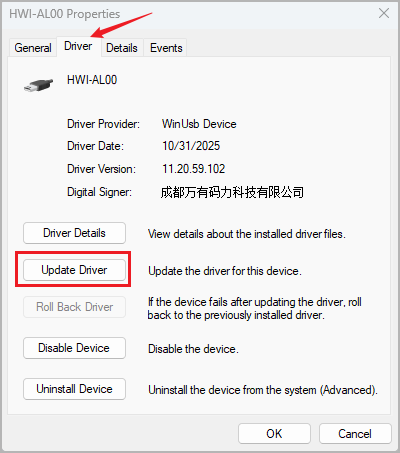
- Select the "Driver" tab and click the "Update Driver" button, as shown below.
- Select "Browse my computer for drivers," as shown below.
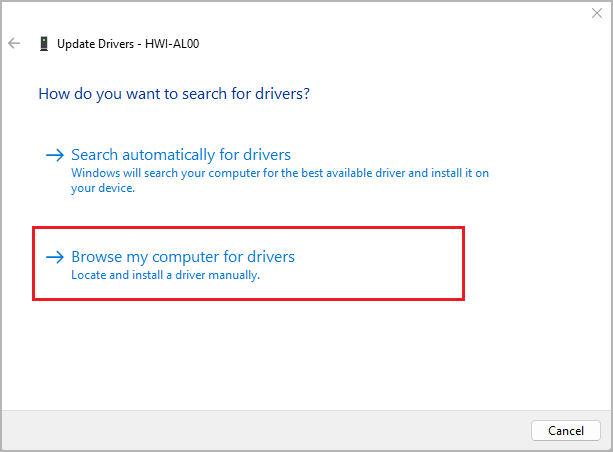
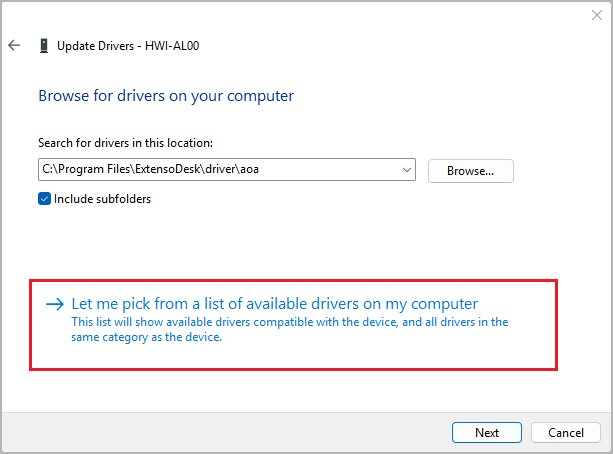
- Select "Let me pick from a list of available drivers on my computer," as shown below.
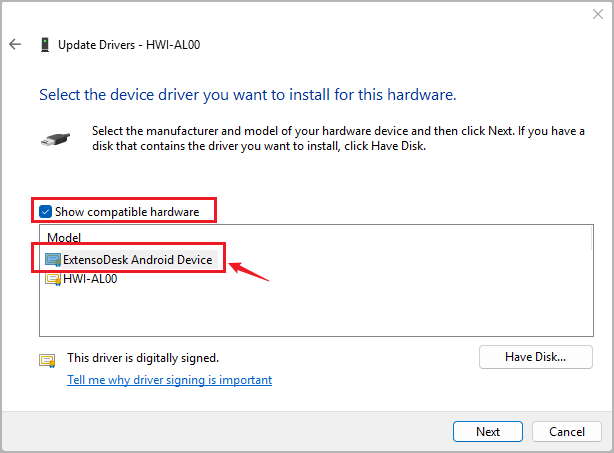
- Check "Show compatible hardware," select "ExtensoDesk Android Device," and click "Next," as shown below.
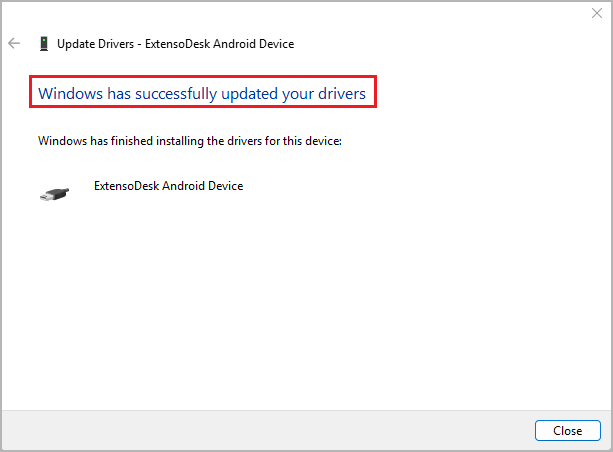
- If the driver switch is successful, it will display 'Windows has successfully updated your drivers,' as shown below.


ExtensoDesk Android Device Error Codes
- Error code 10: Please temporarily enable debugging mode on the tablet device. This issue will be fixed in a future version.
- Error code 43: Please use a USB 2.0 data cable.
Phone cannot transfer files to computer
- Open the ExtensoDesk computer software.
Find your device in the device list. If your device is already connected to the computer, look in the current connection list; otherwise, look in the recent connection list. Click on the device, and uncheck the "Use USB device as client" option in the right-side options list.
- Reconnect the data cable. You should now be able to transfer files to the computer.