
Screen Relative Position
This document explains how to adjust the relative position of screens.
After the first connection, the screen corresponding to the tablet may be on the left or right side of the main screen. If users want to adjust the relative position of screens, they can refer to this document.
Prerequisites
- Install Windows version software on your computer and Android version software on your tablet. If not installed, please refer to Quick Start .
- Already connected via WiFi or USB.
Computer Operations
Note: The following operations only apply to extended screens.
Open Windows system settings, navigate to display settings. Click the "Identify" button, each screen connected to the computer will display a number, which corresponds to the numbers in the screen topology diagram below.
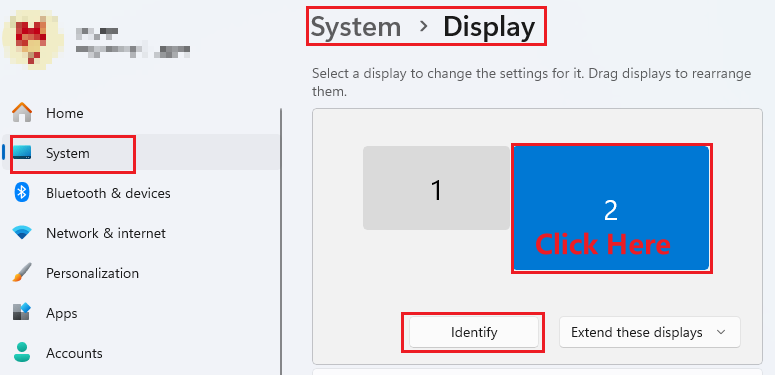
- Click (without releasing the mouse) the screen corresponding to the tablet in the topology diagram. For example, if the tablet corresponds to screen 2 at this time, click screen 2 at the circled position in the diagram, and drag the screen to the left or right according to your needs.
