
WiFi Connection
This document will guide you through WiFi connection setup.
Prerequisites
- Install Windows version software on your computer and Android version software on your tablet. If not installed, please refer to Quick Start .
Tablet and computer are under the same router, or tablet connects to hotspot shared by computer, or computer connects to hotspot shared by tablet (some tablet shared hotspots may not be able to connect, in which case it is recommended to use computer shared hotspot).
If you are in a communication-restricted environment such as a company intranet or a campus network, it is recommended to use computer to share a hotspot or USB Connection .To share a hotspot from the computer, please follow the instructions in the image below to configure it in the computer system settings. (Applicable to computer devices with wireless network cards)
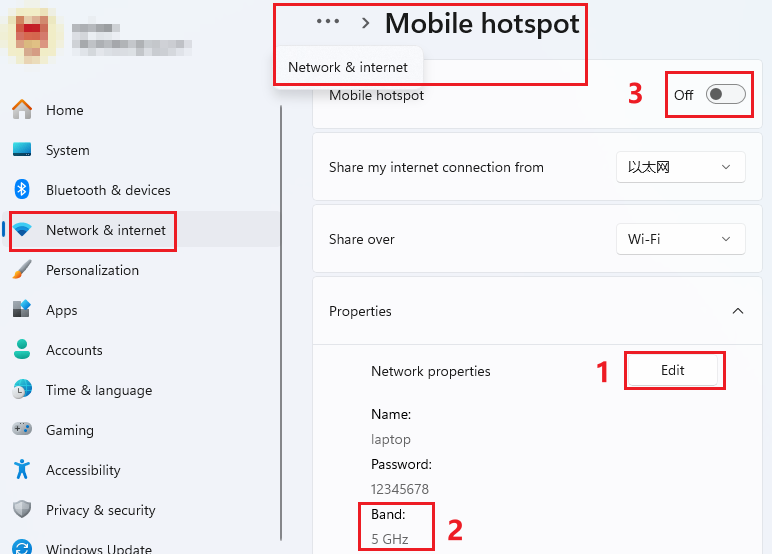
- First, click the Edit button (Button 1) to edit the network information.
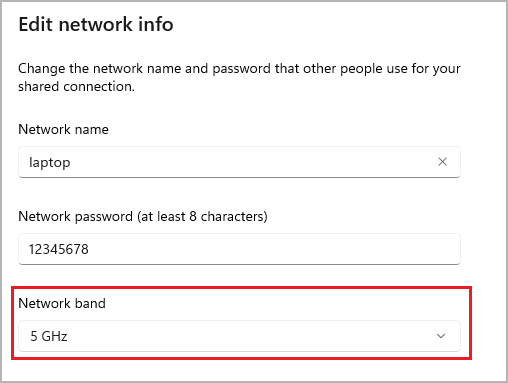
In the pop-up dialog, enter the network name, password, and select the frequency band. It is recommended to select the 5GHz band (faster speed). If sharing fails, please select "Any Available Frequency".
- Click Button 3 to start sharing the network.
- Connect to this network from the WiFi connection page on the tablet.


Computer Operations
- Run ExtensoDesk as administrator.
- Select the settings option, view the initial username/password. You can also customize the username and password. After modification, click outside the username/password fields, and the software will automatically save the username/password. This username and password will be used in the following tablet operations.
Tablet Operations
- Open ExtensoDesk.
- Wait for the software to automatically scan for computer ends in the same local network.
- Click on the scanned computer entry, enter the username and password from the computer settings mentioned above, and click connect.
Unable to Connect?
- Please refer to: FAQ .